Some questions come again and again: "Where is your shop?", "Whom do I call for service?", "Can you deliver to my home?", "How do I book a visit?". The E-Public Touch API has a ready message type for each of them.
1. Send your shop location

...&type=location
&latitude=26.9124
&longitude=75.7873
&location_name=Sharma Electronics
&address=Shop 12, Main Market, Sector 5
How to find latitude and longitude: open Google Maps on a computer, right-click your shop and click the numbers at the top of the menu. They are copied, like 26.9124, 75.7873. The first number is the latitude, the second is the longitude.
location_name (up to 100 characters) and address (up to 300) are optional, but they help the customer. In the tester the boxes are Latitude (1st map number), Longitude (2nd map number), Place name and Address.
2. Send a contact card

...&type=contact
&contact_name=Amit (Service)
&contact_phone=919000000009
&contact_email=service@yoursite.com
Name and phone are a must. Email is optional. In the tester: Contact name, Contact phone (with the country code) and Contact email.
3. Send a WhatsApp call button

...&type=call
&message=Sure! Tap the button to call us on WhatsApp. We are free between 10 am and 7 pm.
&button_text=Call us
In the tester: type your Message and, if you like, the Button text (empty = "Call us").
Want your offer poster with a call button? Use the Poster with buttons page and choose WhatsApp call (Part 5). The poster goes first and the call button comes as a second message.
4. Ask for the customer's location

...&type=location_request
&message=Sure! Please share your delivery location so our team can reach you.
In the tester, write in Message why you need their location. The phone on the right shows your text with the Send location button. The location the customer sends comes to your Live Chat, and your apps can read it from Customer replies (Part 7).
5. Send a WhatsApp form
A form message is your text with one button, like Book a visit. When the customer taps it, a form opens inside WhatsApp. They fill it and press submit, without leaving the chat. Good for site visit bookings, feedback and simple enquiries.
Before you start: make the form in your panel (Flow Maker or WhatsApp Flows) and publish it. Only published forms can be sent.
Find your form number
Every form has a long number, the form ID. The tester calls it the Form number. Two easy ways to get it:
- In the tester, open My forms (under Check & read) and press Show my forms. Each form shows its Form number with Copy and Use this form.
- Or, on the Form page, just click Load my forms and choose your form from the list. The number is filled in for you.

Send it from the API Tester
- In the left menu, open More message types and click Form. (Or click Use this form on the My forms page.)
- Type the customer's number in Send to (WhatsApp number).
- Next to Form, click Load my forms. A line says how many published forms were found. Choose your form from the list.
- Type the Text above the button, for example Please fill this short form to book your free site visit.
- Type the Button text (up to 20 characters). If you leave it empty, it says "Open form".
- Check the phone on the right: your text with the form button under it. Then click Send now.

The link looks like this (put your own form ID in place of FORM_ID):
...&type=form
&form=FORM_ID
&message=Please fill this short form to book your free site visit.
&button_text=Book a visitformandmessageare a must.button_textis optional (default "Open form").- Optional:
header(a bold line on top) andfooter(small grey text), up to 60 characters each. In the tester they are Bold line on top and Small text at the bottom, under Extra settings (optional). - A wrong or unpublished form ID gives a red answer: "This form ID is not one of your published WhatsApp forms." Publish the form, or check its number in My forms.
Where do the answers go?
When the customer submits the form, the answers come to your Live Chat as one message, with one line for each form field. Your apps can read them from Customer replies too (Part 7). A filled API form does not start your chatbot or Flow Maker.
A form with your poster
A form button cannot have a photo on top. So on the Poster with buttons page, choose Form: the poster with your text goes as message 1, and the form button comes as message 2, with the short Text above the form button. The phone on the right shows both, marked Message 1 and Message 2, and the line under Send now says Ready. Press Send now to send both messages.
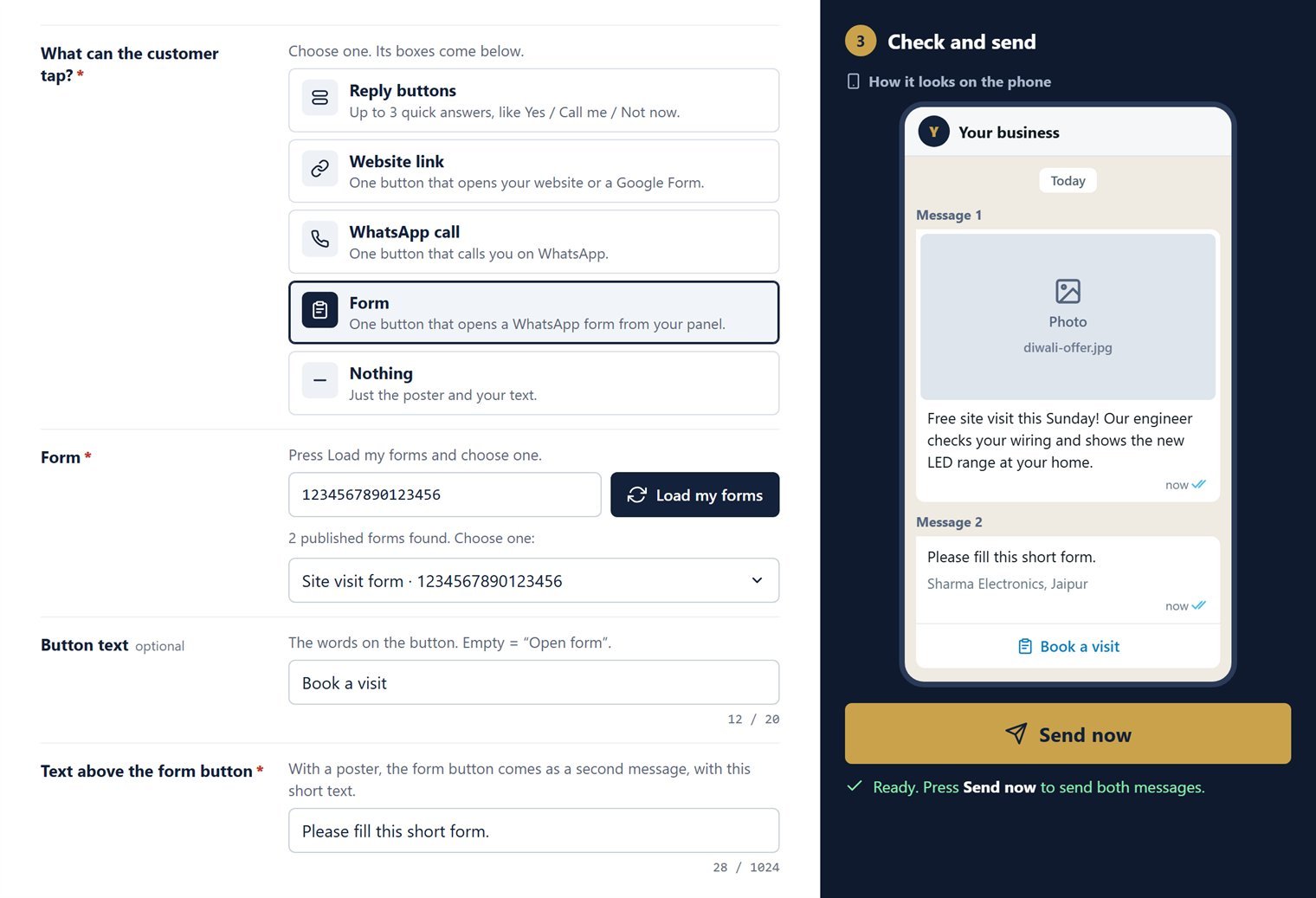
In the API Tester
All of these are in the API Tester. In the left menu, under Send a message, open More message types (11) and click Location pin, Contact card, WhatsApp call button, Ask for location or Form. Each page shows only the boxes it needs. The dark panel on the right shows How it looks on the phone (a map pin, a contact card or your text with its button), then Send now and, in the fold Link & code for your software, your link.

What next?
You have sent many messages. How do you know they reached the customer? Part 7 shows delivery status and how to read replies.
Next: Part 7 — Delivery status and replies
- Part 1: Get your API key
- Part 2: Send your first message
- Part 3: Template messages
- Part 4: Photos, PDFs and videos
- Part 5: Buttons, list menus and posters
- Part 6: Location, contact card, call button and form (you are here)
- Part 7: Delivery status and replies
- Part 8: Website form and Google Sheet
- Part 9: Errors and limits
- Part 10: Moving from another provider
- Part 11: Several messages at once
- Part 12: Set up with AI
Try everything live in the API Tester.
Book Free Demo Try Free Message Checker